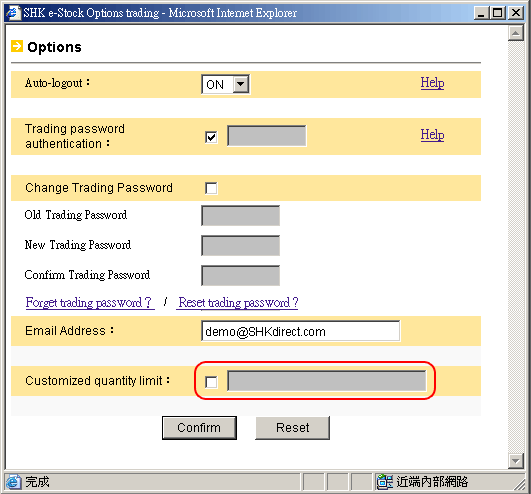
Click on "Options" to set your preferences.
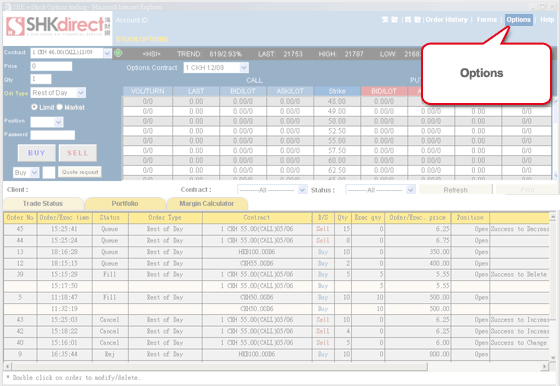
1. By setting Auto-Logout to "ON", the trade engine will auto-logout when it is left idle for 30 mins.
2. Click "Confirm" button at the bottom to effect the changes.
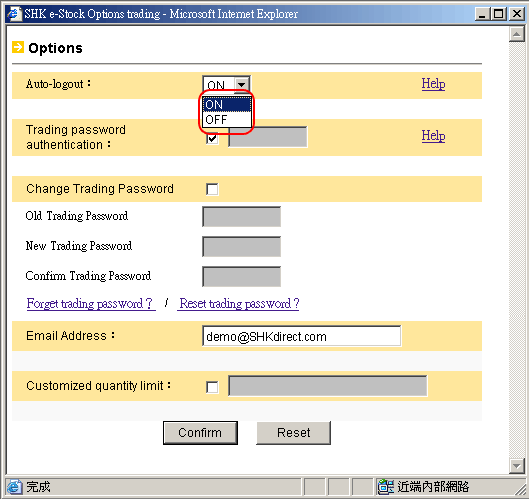

1. If you check the box, everytime when you place an order, you will need to enter your trading password for authentication.
2. If you do not want to enter your trading password everytime when you place an order, please uncheck the box.
3. Click "Confirm" button at the bottom to effect the changes.
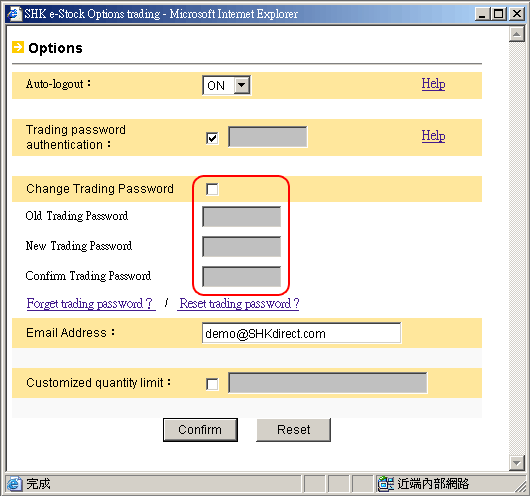
1. Check the box if you want to change your Trading Password.
2. Enter your old Trading Password and then enter a new Trading Password twice.
3. Click "Confirm" button at the bottom to effect the changes. .
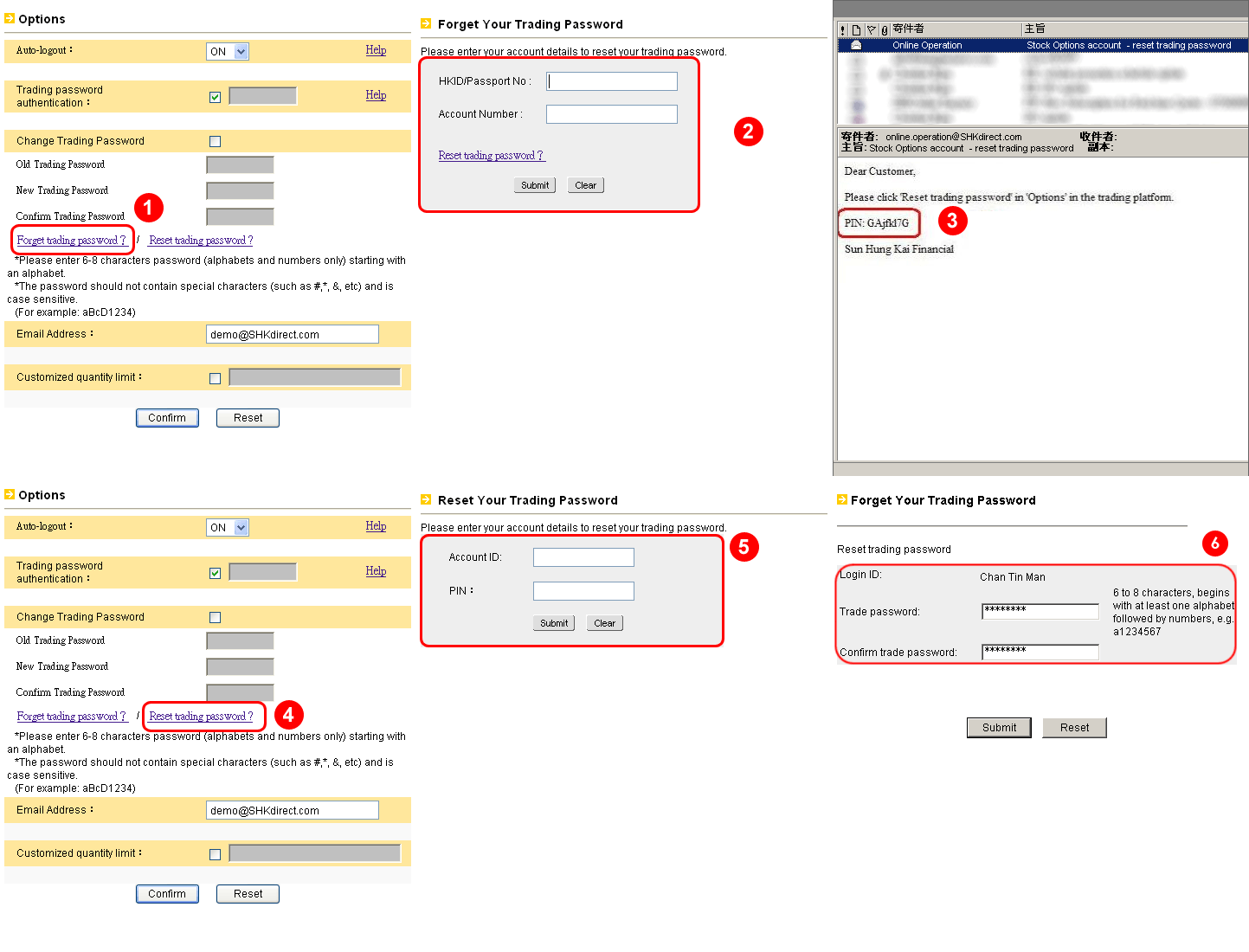
1. First, click on "Forget trading password?"
2. Fill in the required information and submit.
3. You will receive an email containing a PIN.
4. With the PIN, click on "Reset trading password?".
5. Fill in your Account ID and the PIN.
6. Create a new trading password and click "Submit".
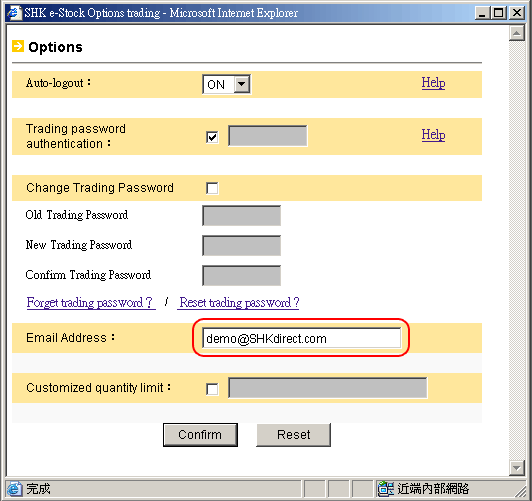
1. Type in your new email address. (Note: this email address will be used for receiving all emails from us)
2. Click "Confirm" button at the bottom to effect the changes.
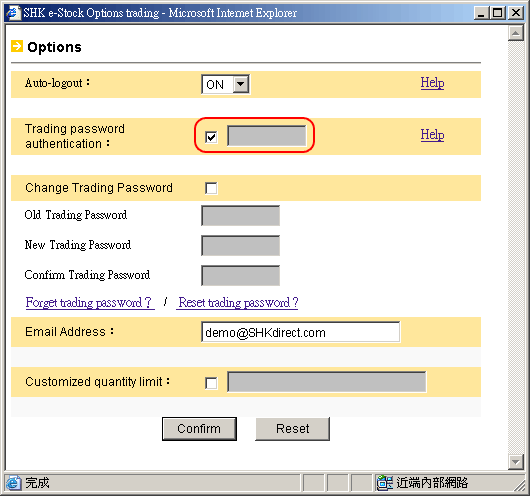
1. By checking the box and setting the quantity limit, the system will warn you if you place an order with quantity exceeded this limit.
2. Click "Confirm" button at the bottom to effect the changes.